Anpersoft /Products /Typia
Typing tutor for your desktop

Touch typing that adapts to you

Typia teaches the keyboard one lesson at a time, then keeps track of the keys you miss and gives you more of them. In English, Polish, Russian and Ukrainian.

  • macOS 12 or later
  • Windows
  • Linux
  • No account needed
A lesson being typed: the guide hands move to each key as the speed counter climbs.

Why Typia

How it works

Lessons, sessions and free practice

Open the Mode sidebar (⌘L) and pick one. Each mode has its own colour on the keyboard, so you can always tell which one you're in.

01 / 04

Lessons: learn the keyboard

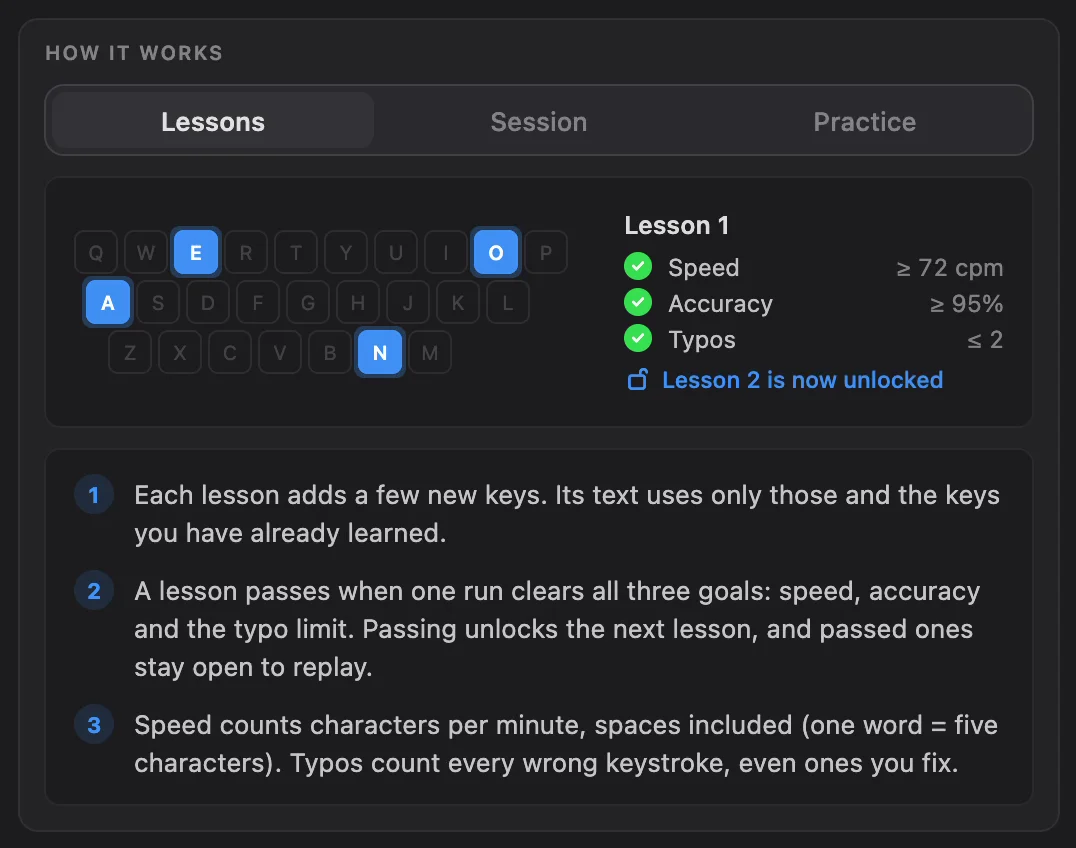
  • Each lesson adds a few new keys, and its text uses only those and the keys you've already learned.
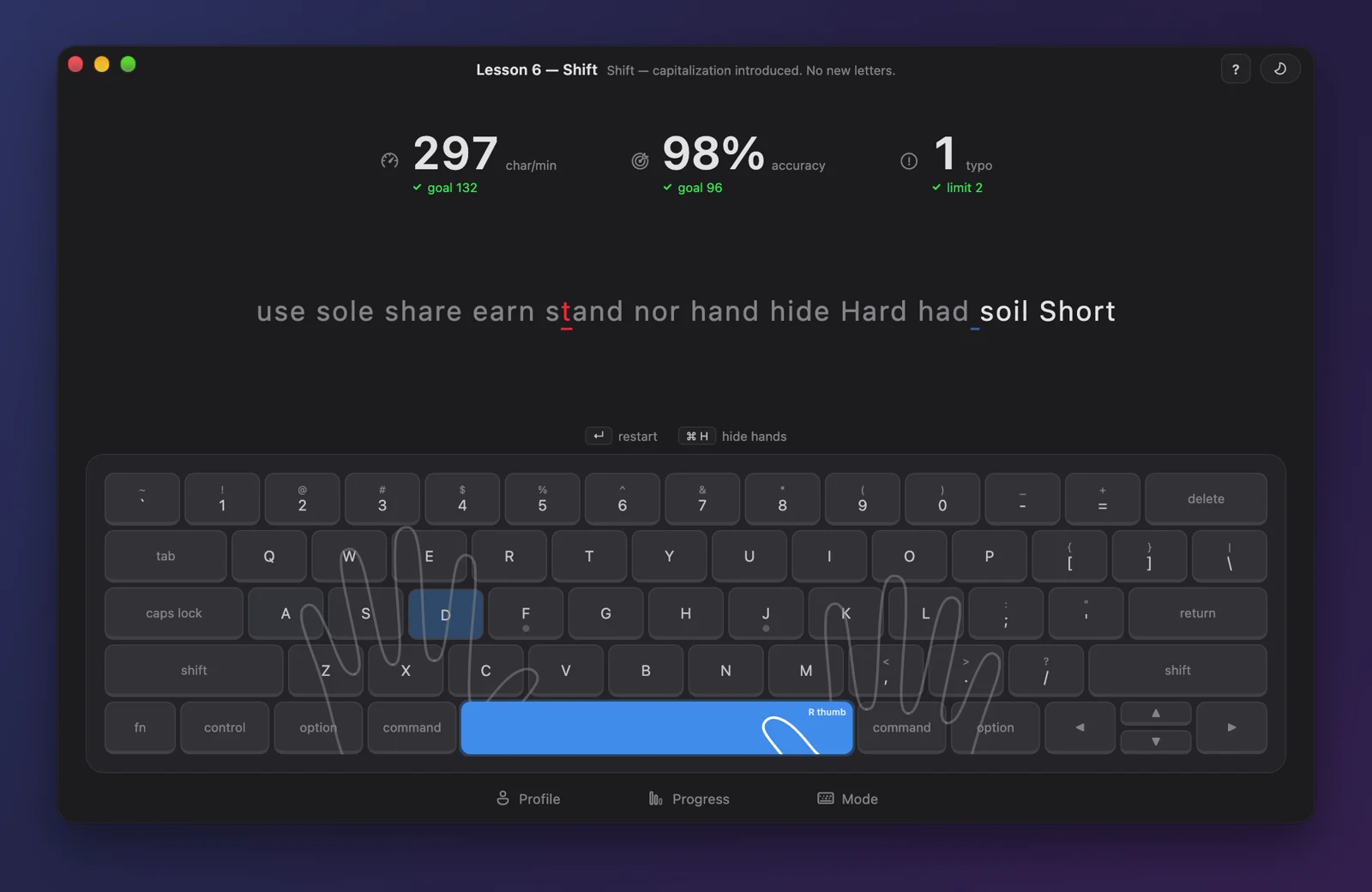
  • While you type, the counters above the line show the lesson's goals for speed, accuracy and typos, and tick each one off as you reach it.
  • Clear all three in one run and the next lesson unlocks. Passed lessons stay open to replay.
  • English has 14 lessons, Polish 16, Russian 15 and Ukrainian 15. The English course starts with E, A, O and N in lowercase and ends with the whole keyboard: capitals, punctuation, quotes and @.
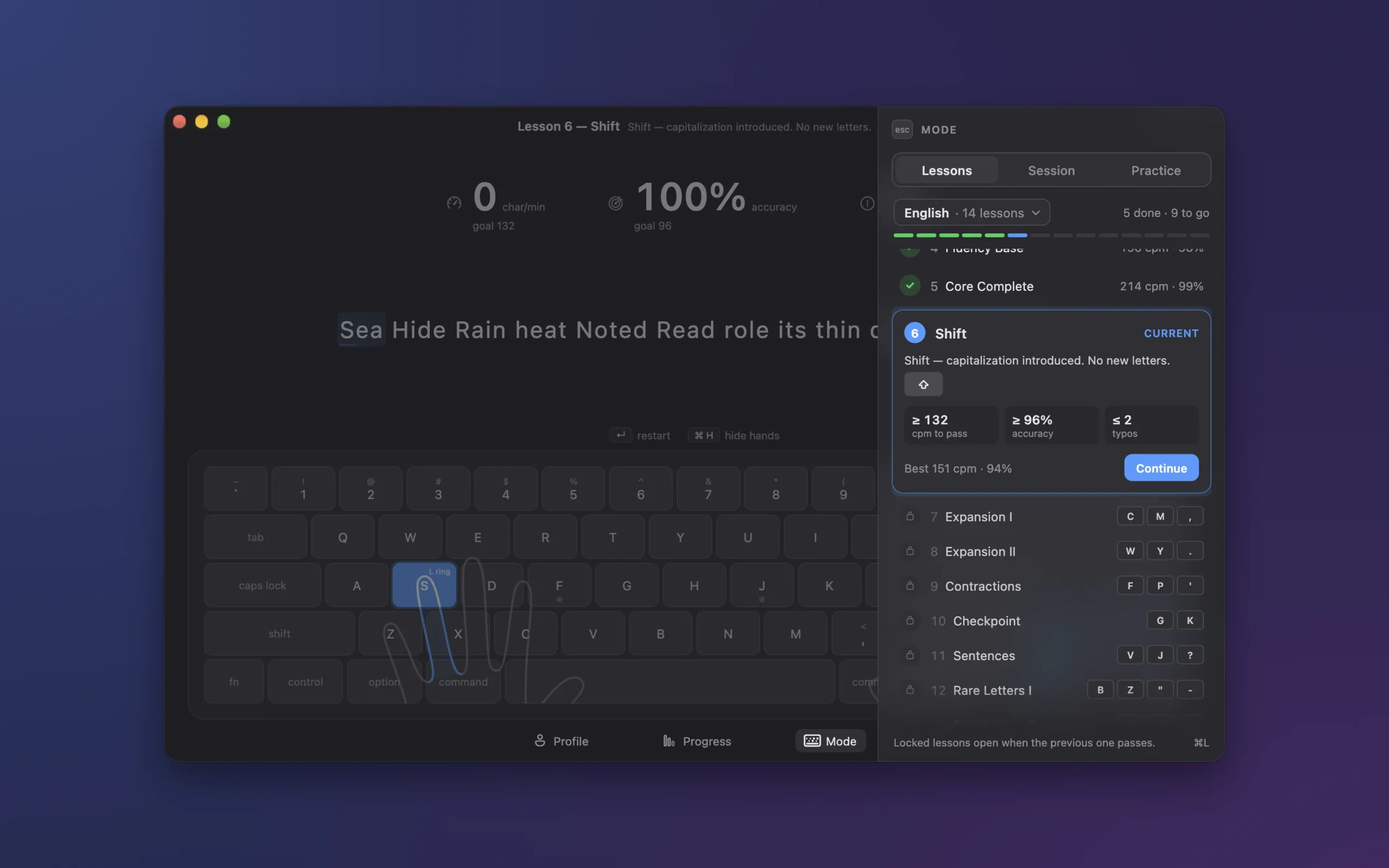
The Lessons sidebar: passed lessons ticked, the current lesson's goals, and locked lessons with their new keys.
The Lessons guide from the Help screen: a lesson's new keys light up and its speed, accuracy and typo goals tick off.

The English course

cpm is characters per minute, spaces included. Lesson 14's goal of 228 cpm is about 46 words per minute.
02 / 04

Session: type for a set time

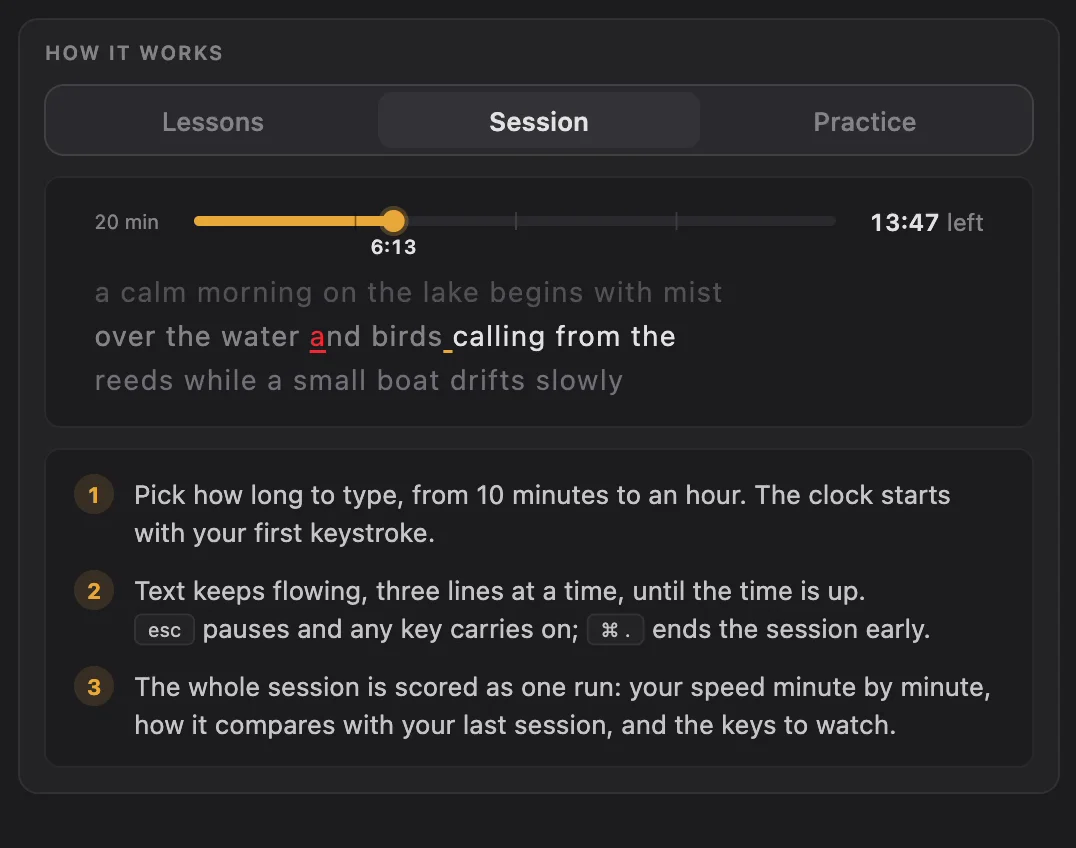
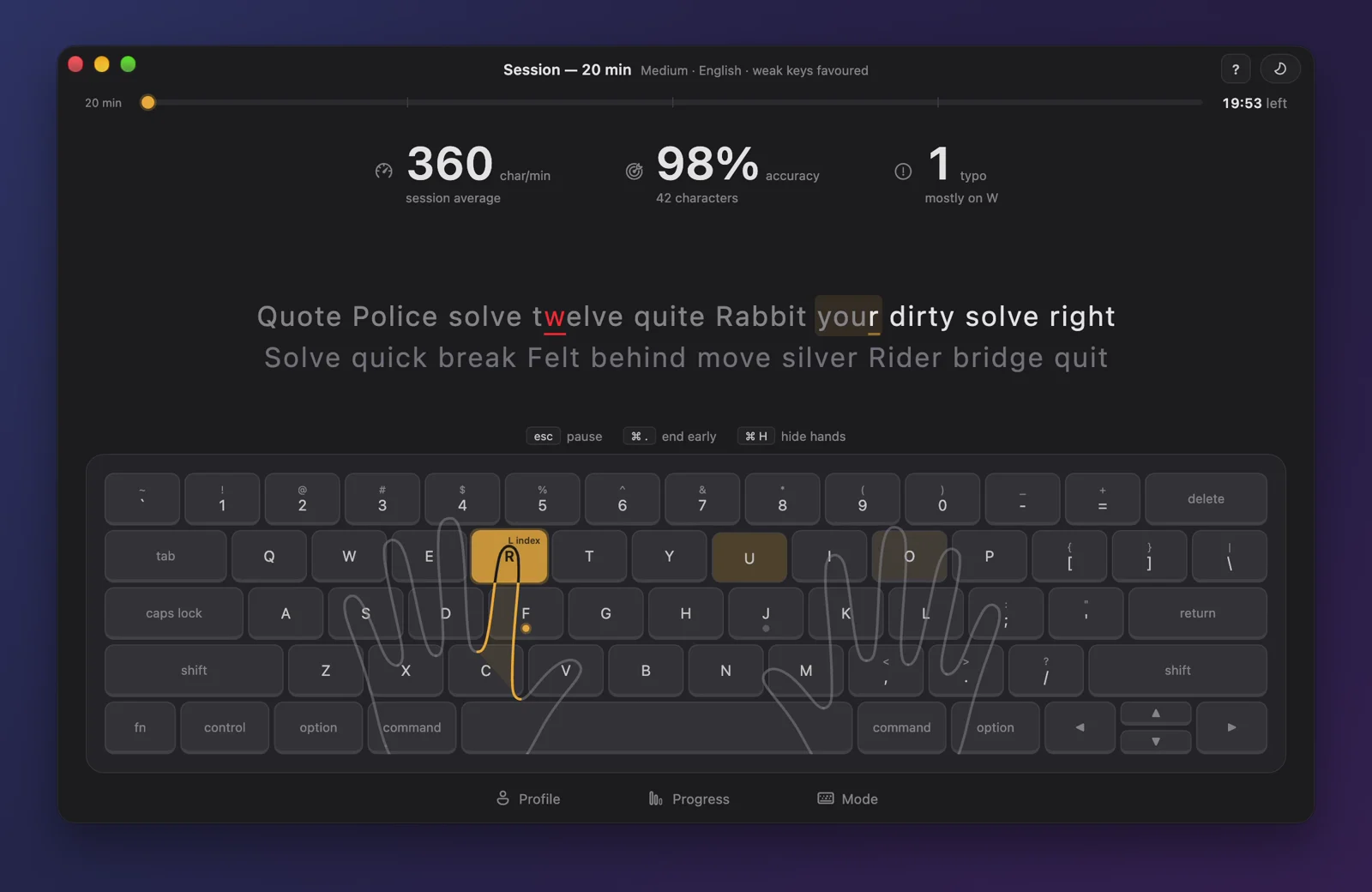
  • Choose 10, 20, 30 or 60 minutes. The clock starts with your first keystroke.
  • The text keeps flowing, three lines at a time, until the time is up. You never stop to load a new exercise.
  • esc pauses and any key carries on. Typia can also pause by itself when you switch to another window.
  • ⌘. ends the session early.
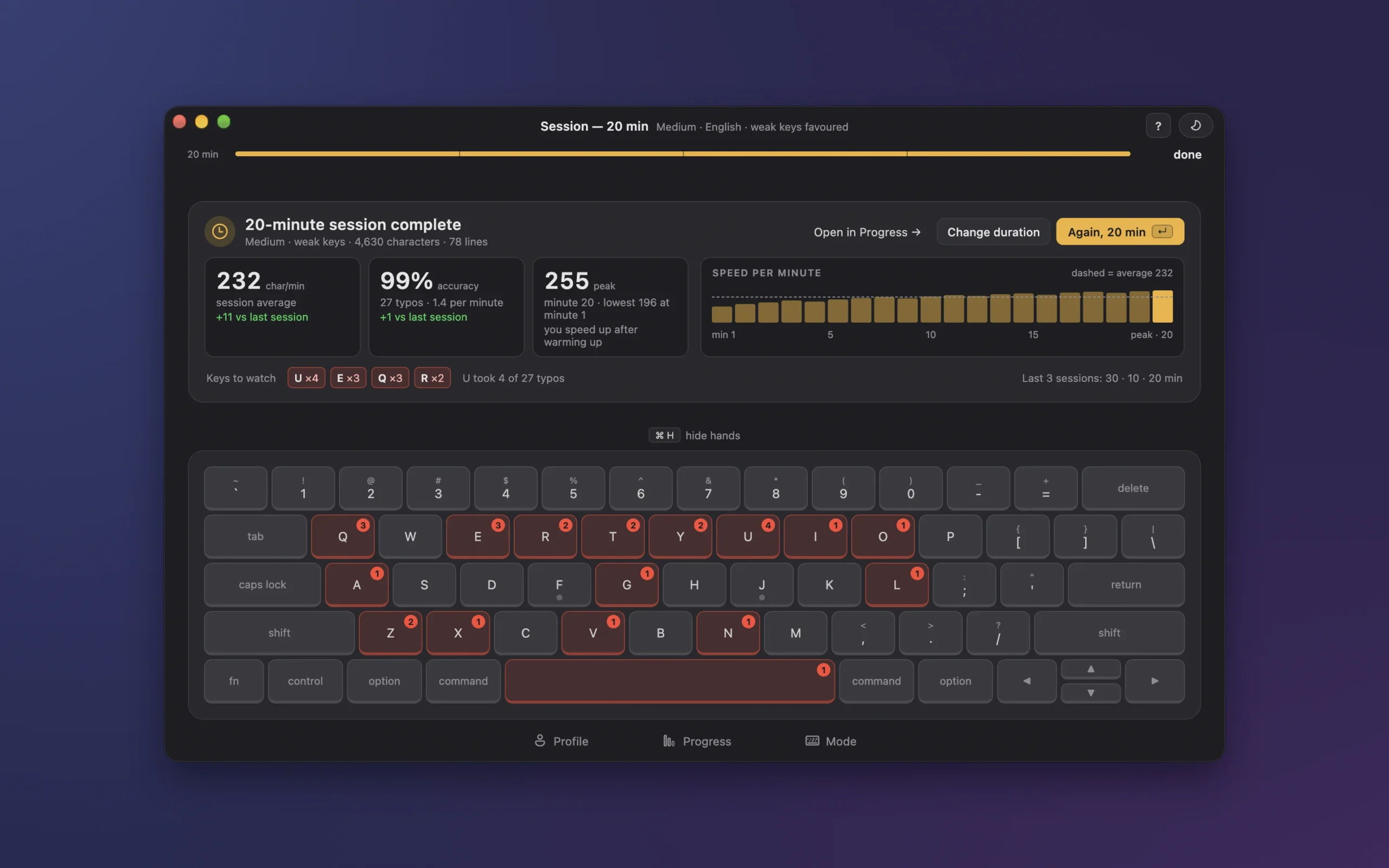
  • The whole session is scored as one run: your speed minute by minute, how it compares with your last session, and the keys to watch.
  • Pick a difficulty, and choose whether your weak keys come up more often.
A 20-minute session: each line rises away when it is finished and the next one flows in.
A session result card: a 20-minute session complete at 232 characters per minute and 99 % accuracy, with a bar for each minute and the keys that took the most typos.
The Session guide from the Help screen: the timer runs while the text flows three lines at a time.
03 / 04

Practice: a fresh text every run

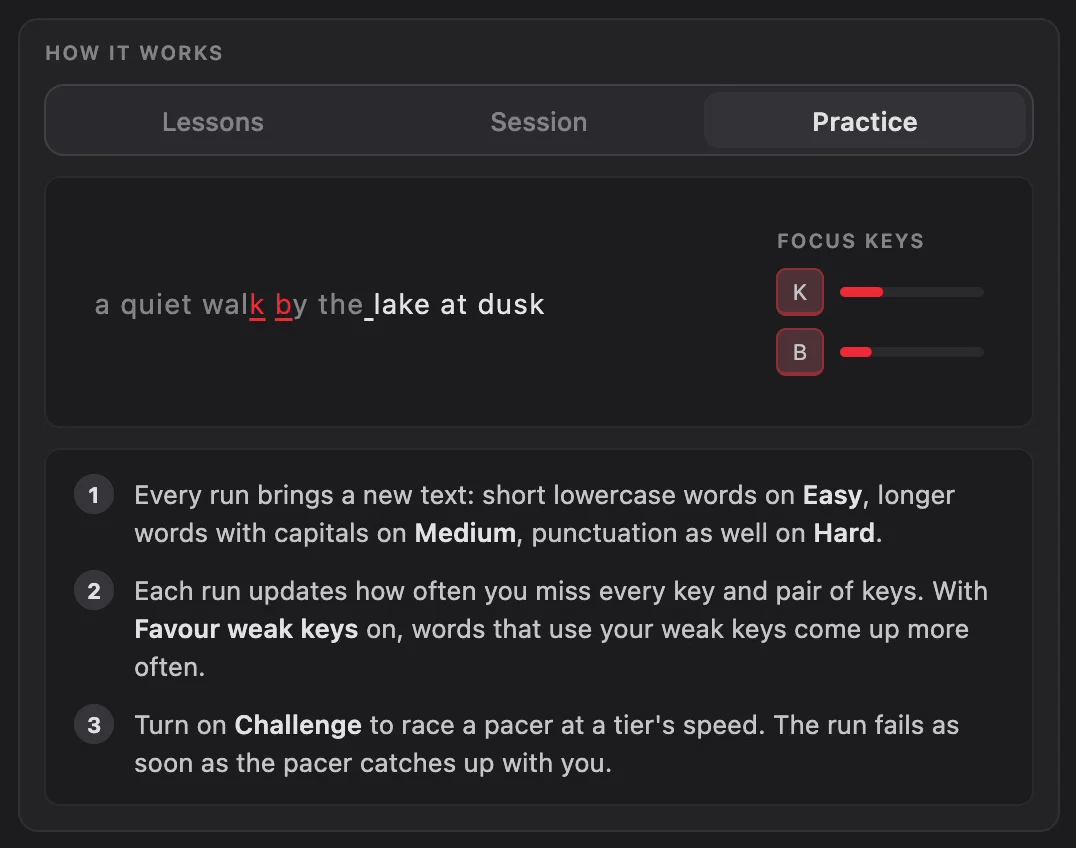
  • Easy: short, common words in lowercase.
  • Medium: longer words with capitals.
  • Hard: long words, punctuation and capitals from the full word list, with numbers if you want them.
  • With Favour weak keys on, the text picks more words that use the keys you miss most.
  • ↩ brings a new text; ⌘R types the same one again.
The Practice guide from the Help screen: a fresh text being typed, with the keys you miss most tracked beside it.
04 / 04

Challenge: race the pacer

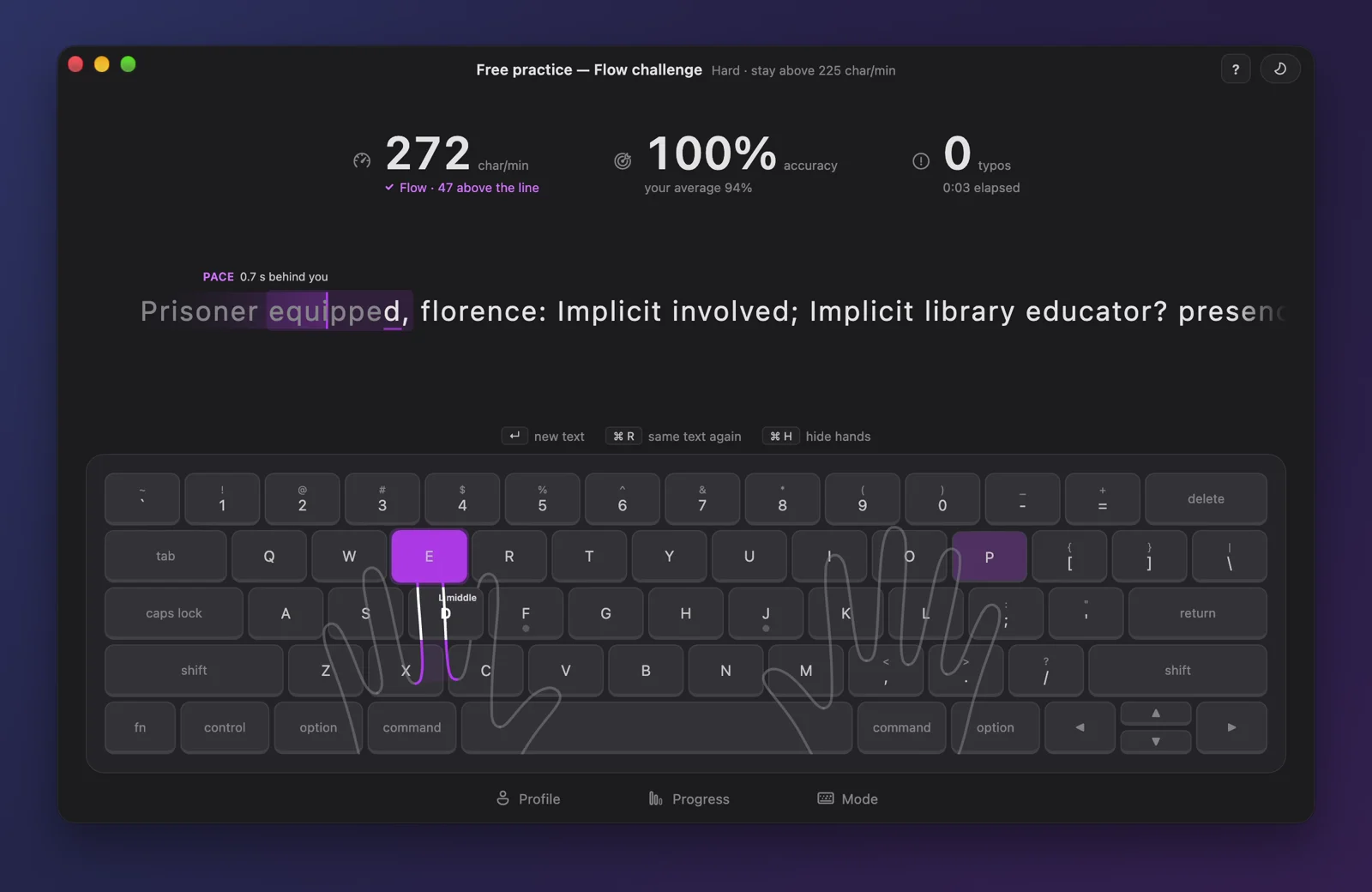
  • Turn on Challenge in Practice and pick a tier. A pacer moves through the text at the tier's speed, and the run fails as soon as it catches up with you.
  • Seven tiers, from Explorer at 25 words per minute to Apex at 95.
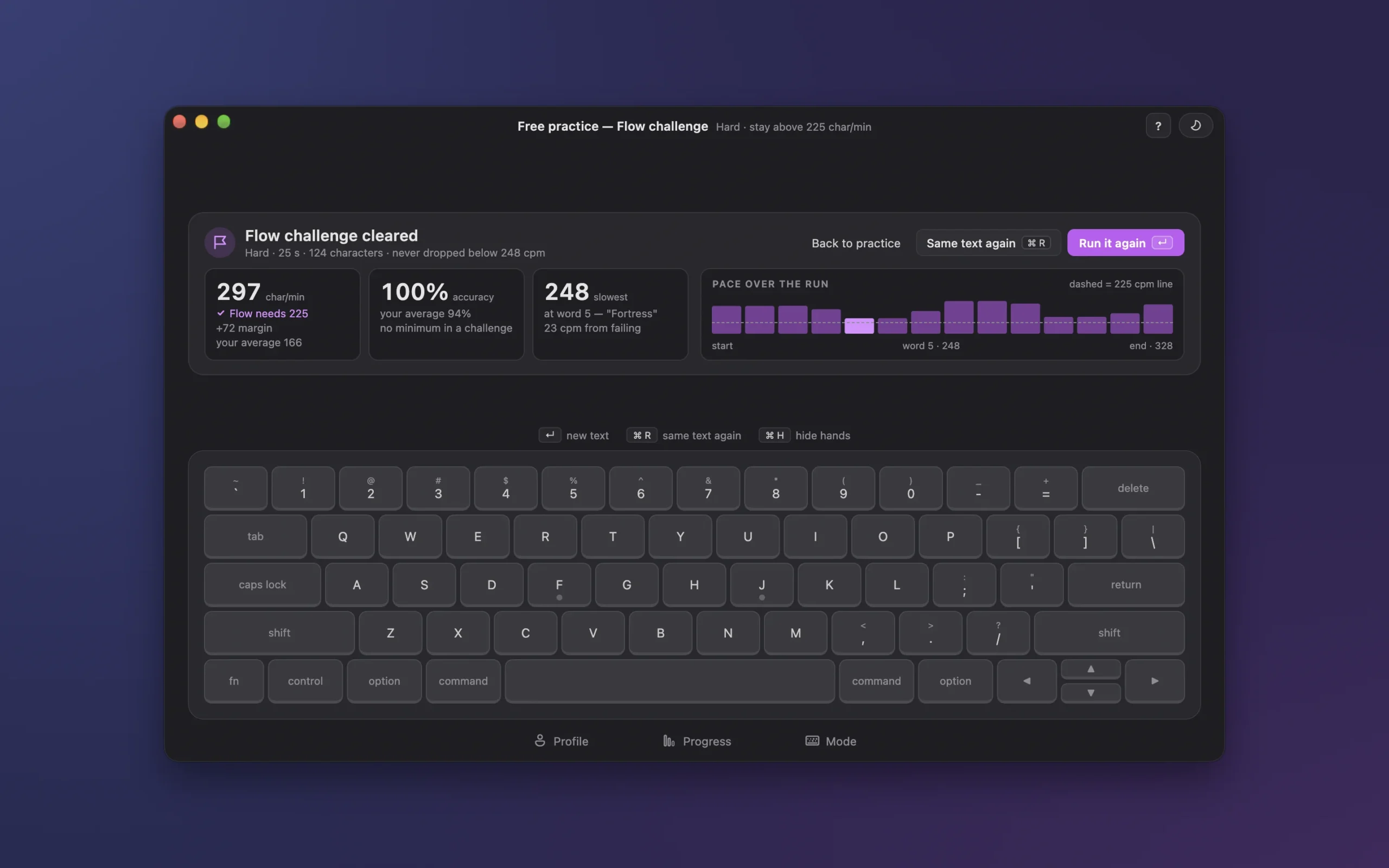
  • Afterwards you see your pace over the whole text, your slowest word and how much margin you kept.
A Flow challenge: the violet pacer follows close behind the typist's caret.
A challenge result card: Flow challenge cleared at 297 characters per minute, with the pace over the run and the slowest word.
Tier Characters per minute Words per minute
Explorer 125 25
Trail 175 35
Flow 225 45
Swift 275 55
Wild 325 65
Predator 400 80
Apex 475 95
Feedback

See what your hands are doing

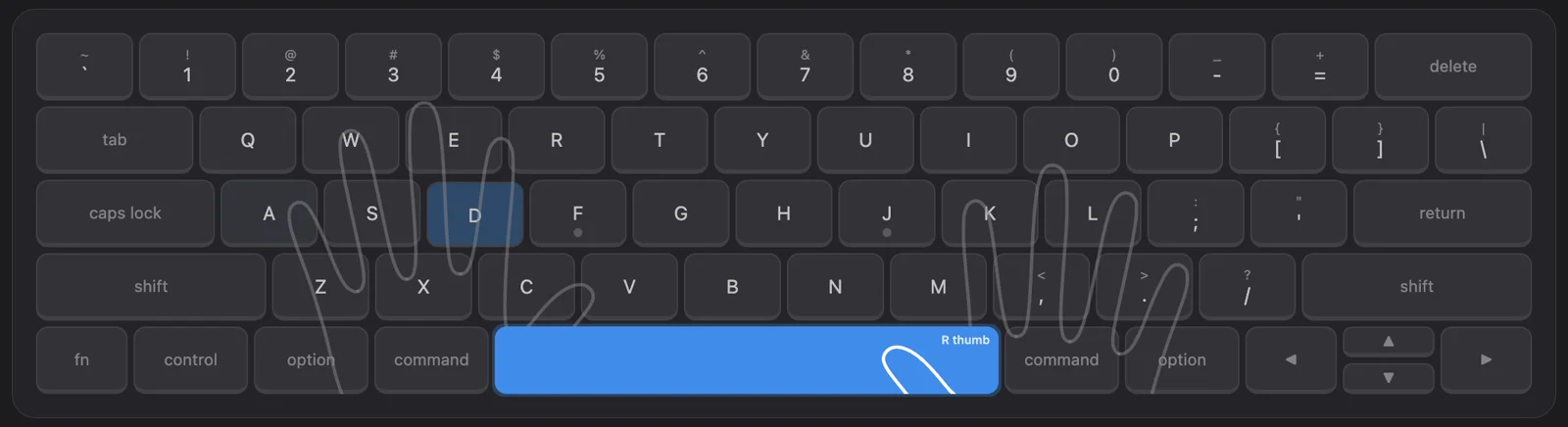
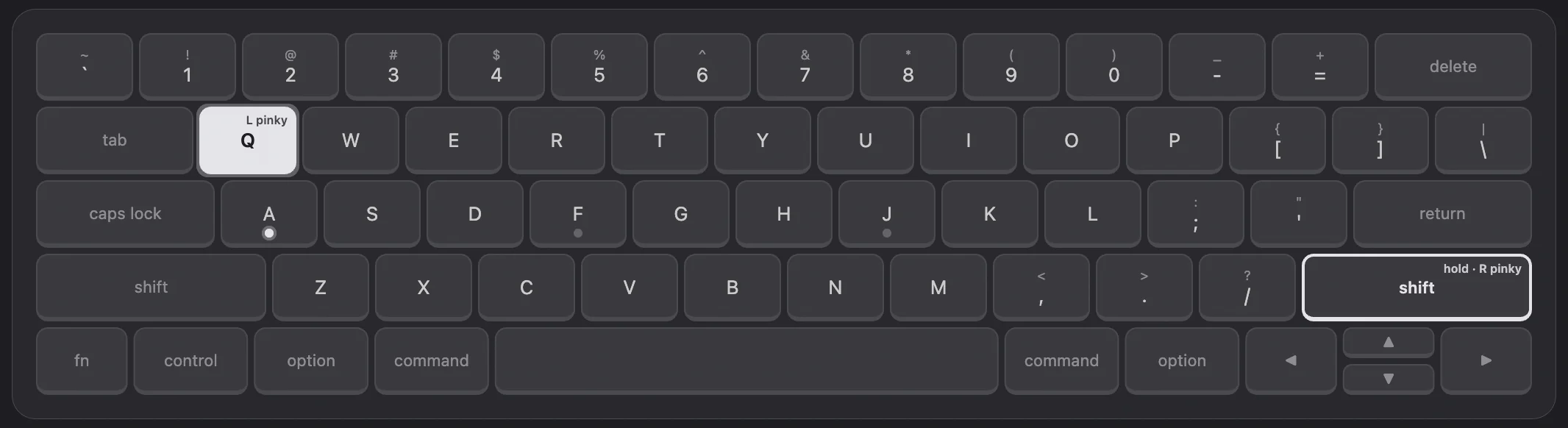
Keyboard close-up: the guide hands glide to each key and the keys sink as they are typed.
Results

Know what to work on next

When you finish a lesson, a practice text or a challenge, a result card takes the place of the typing line:

  • Speed, accuracy and typos, each compared with your last run.
  • A review of the text with every typo marked, and the keys to watch.
  • The keyboard shows where your typos landed.
  • Your last runs on that lesson as a small trend, and a NEW BEST badge when you set a best.
  • ↩ goes on to the next exercise and ⌘R tries the same one again.
The last words of a lesson being typed, then the speed, accuracy and typo counters fly into the result card.
Progress

Watch yourself get faster

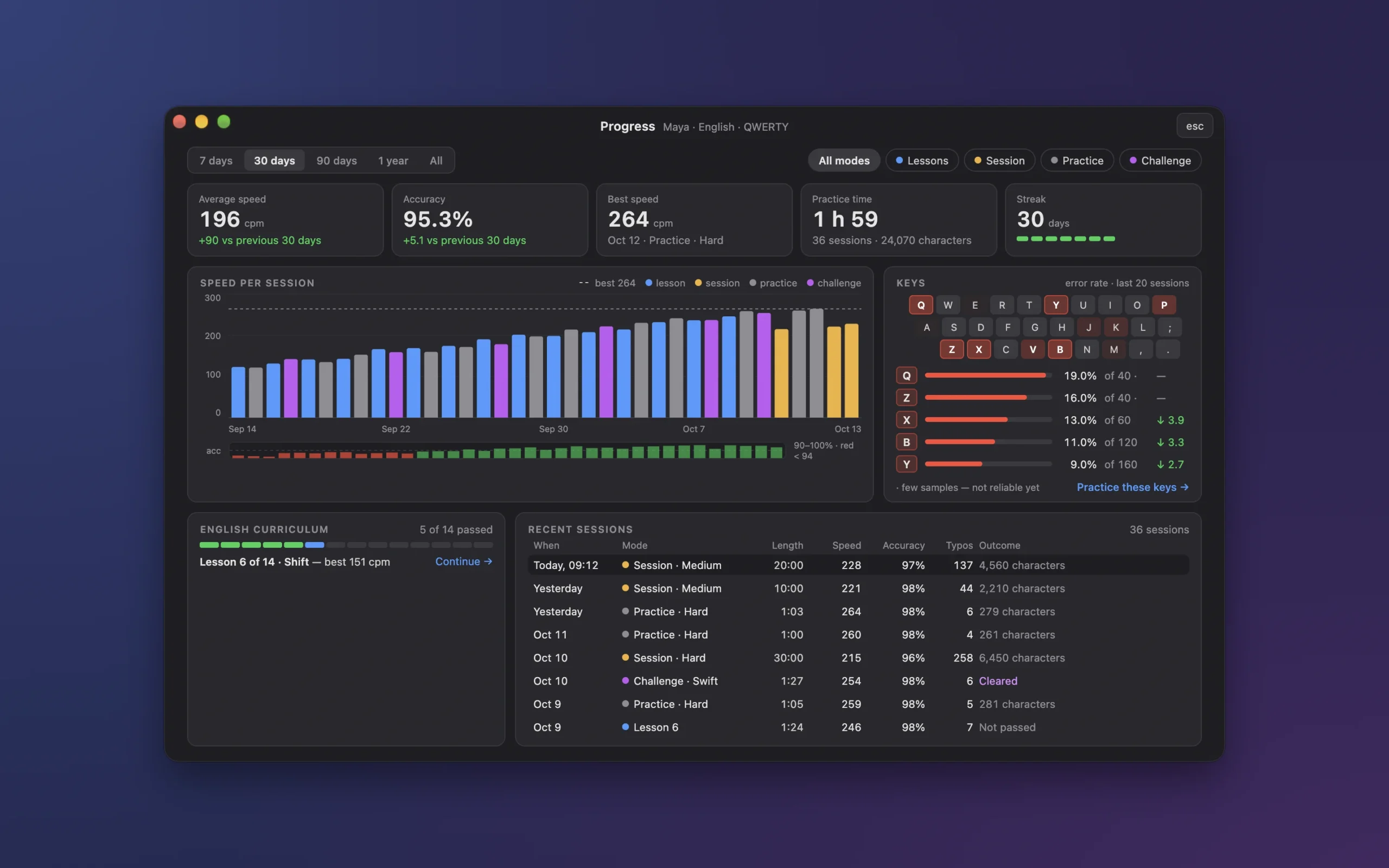
Press ⌘G for your progress:

The Progress screen: speed per session over 30 days, weak keys on a keyboard map, and recent sessions.
Languages

Your language, your keyboard

The on-screen keyboard in the QWERTY layout.
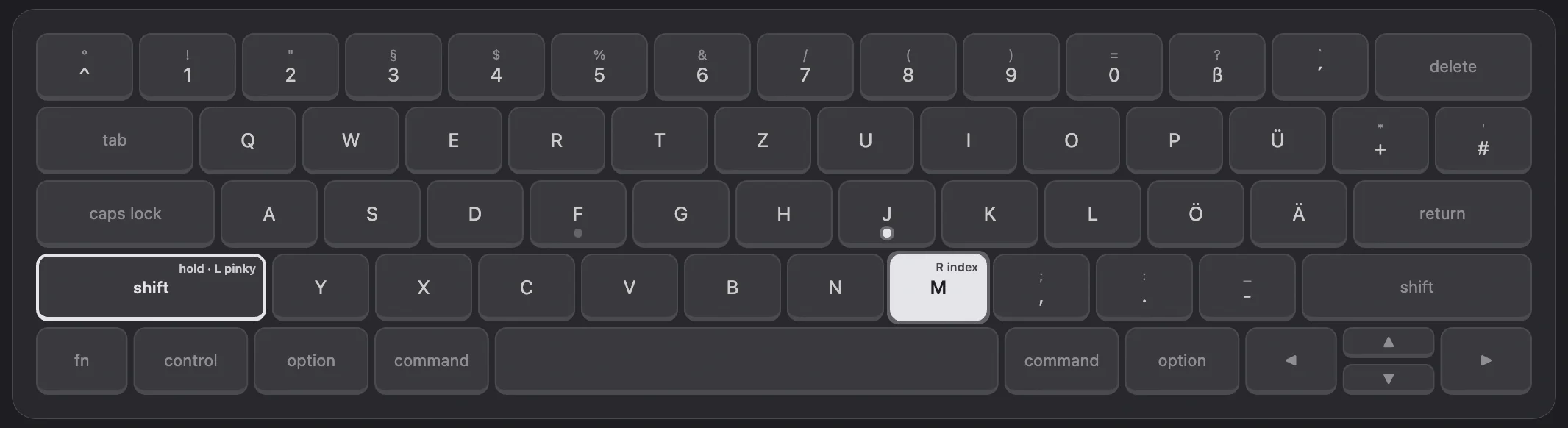
The on-screen keyboard in the QWERTZ layout.
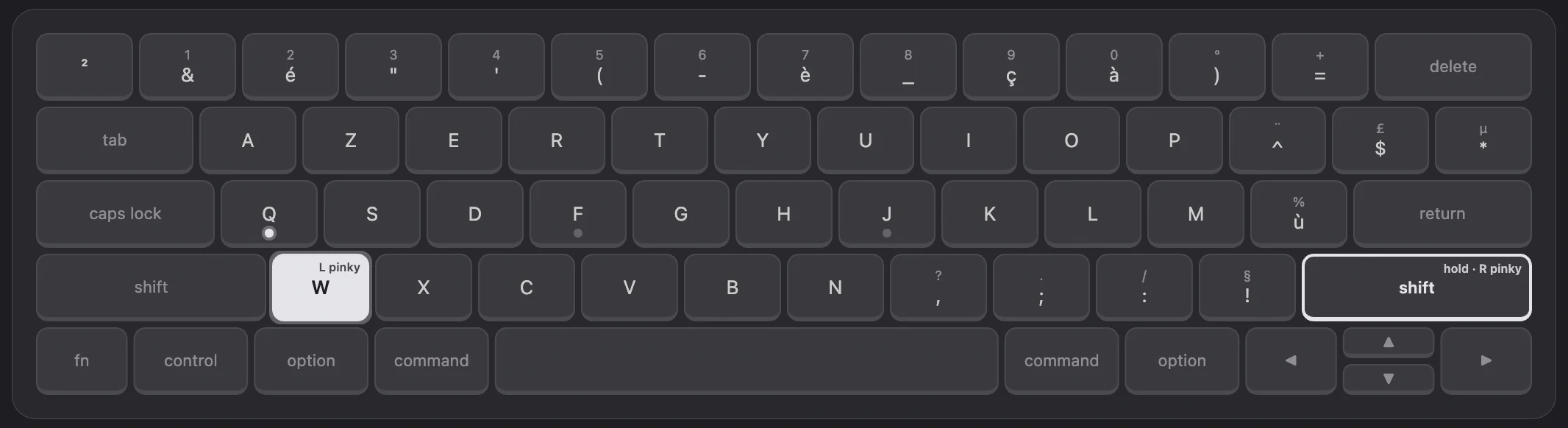
The on-screen keyboard in the AZERTY layout.
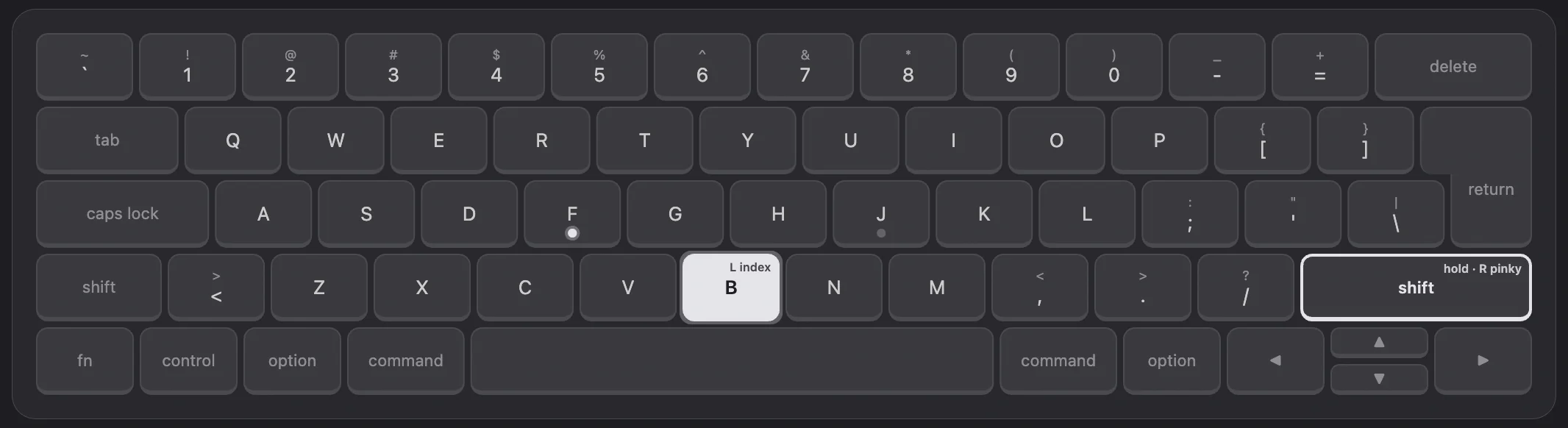
The on-screen keyboard in the QWERTY layout, European ISO shape.
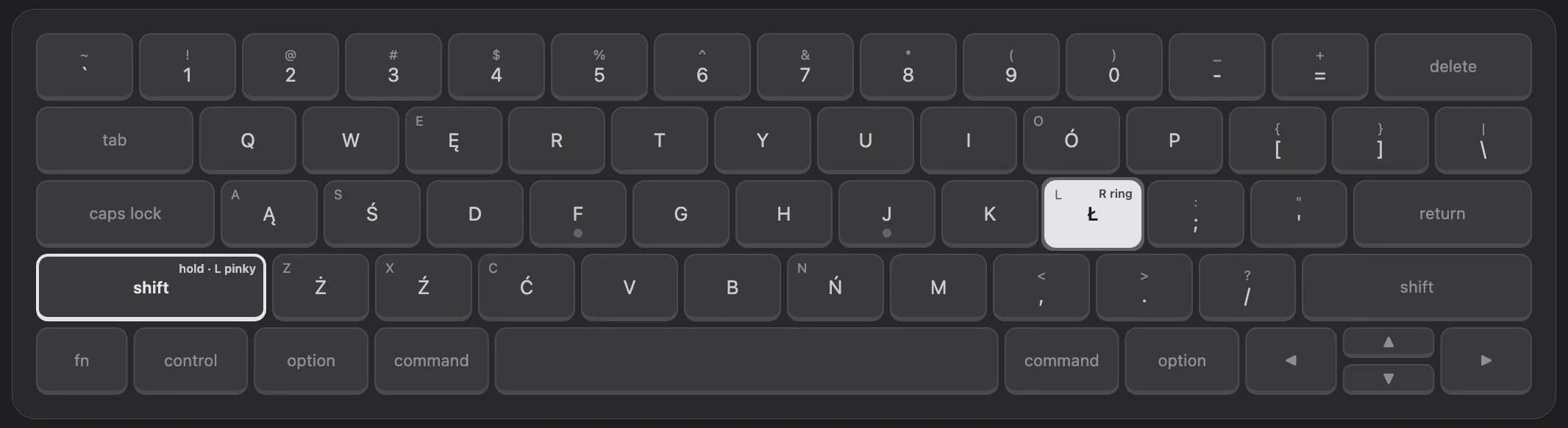
The on-screen keyboard in the Polish layout.
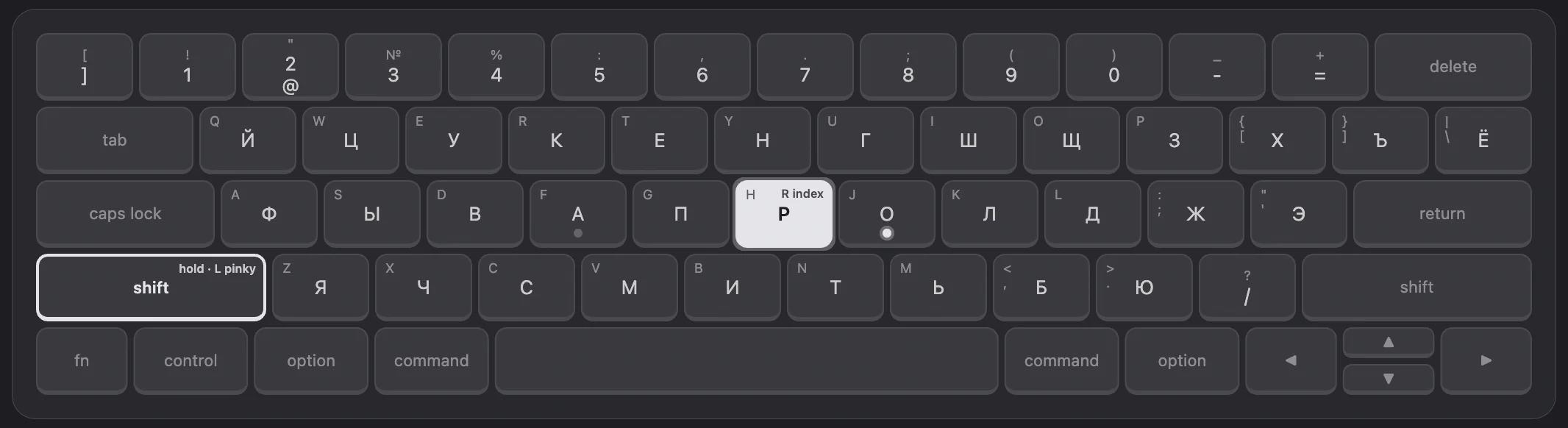
The on-screen keyboard in the Russian (Mac) layout.
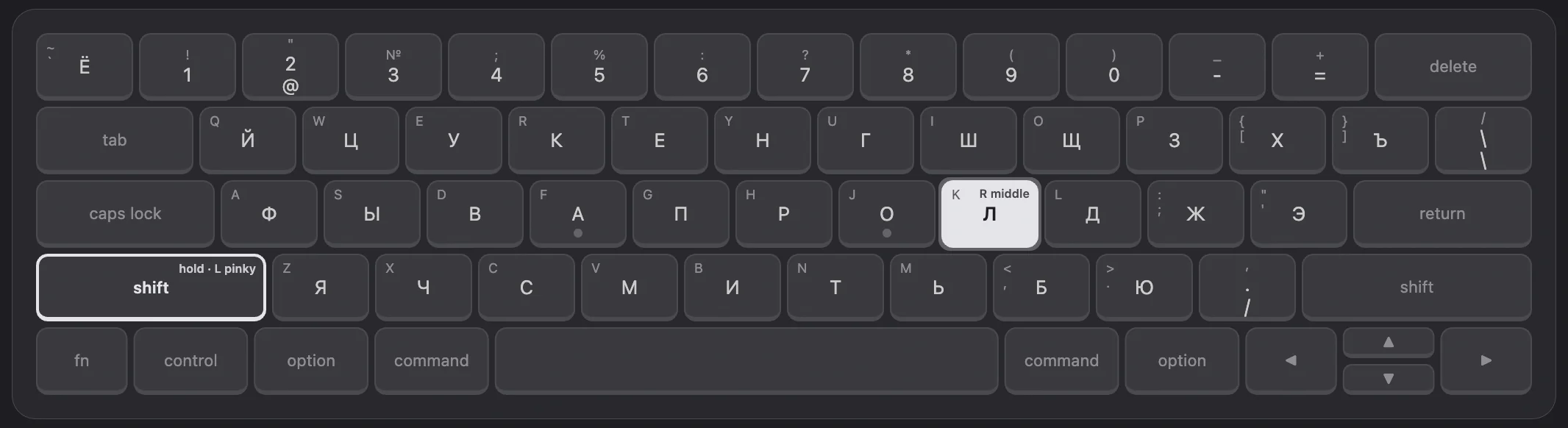
The on-screen keyboard in the Russian – PC layout.
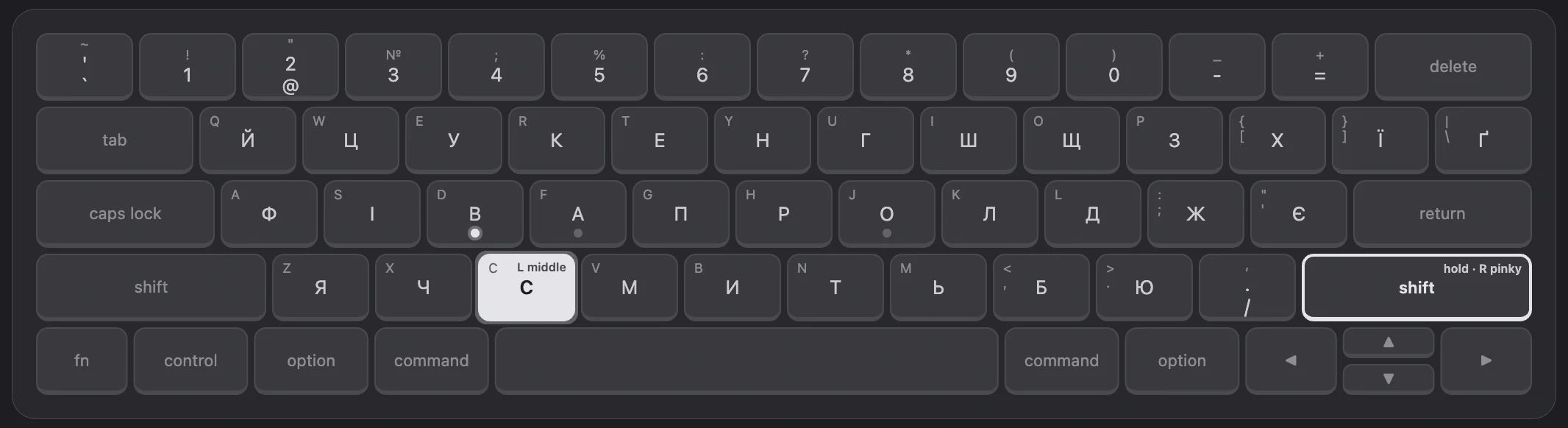
The on-screen keyboard in the Ukrainian layout.
  • Every layout comes in both keyboard shapes: American (ANSI) and European (ISO, with the tall Enter key and an extra key beside the left Shift).
  • On a Mac, Russian starts on the Mac's own layout, with the comma and period on Shift+6 and Shift+7. On Windows and Linux it starts on the PC layout.
  • Typia's menus, buttons and messages come in the same four languages, and you set them separately from the language you type in.
  • Shortcuts keep working when you type on a Cyrillic layout.
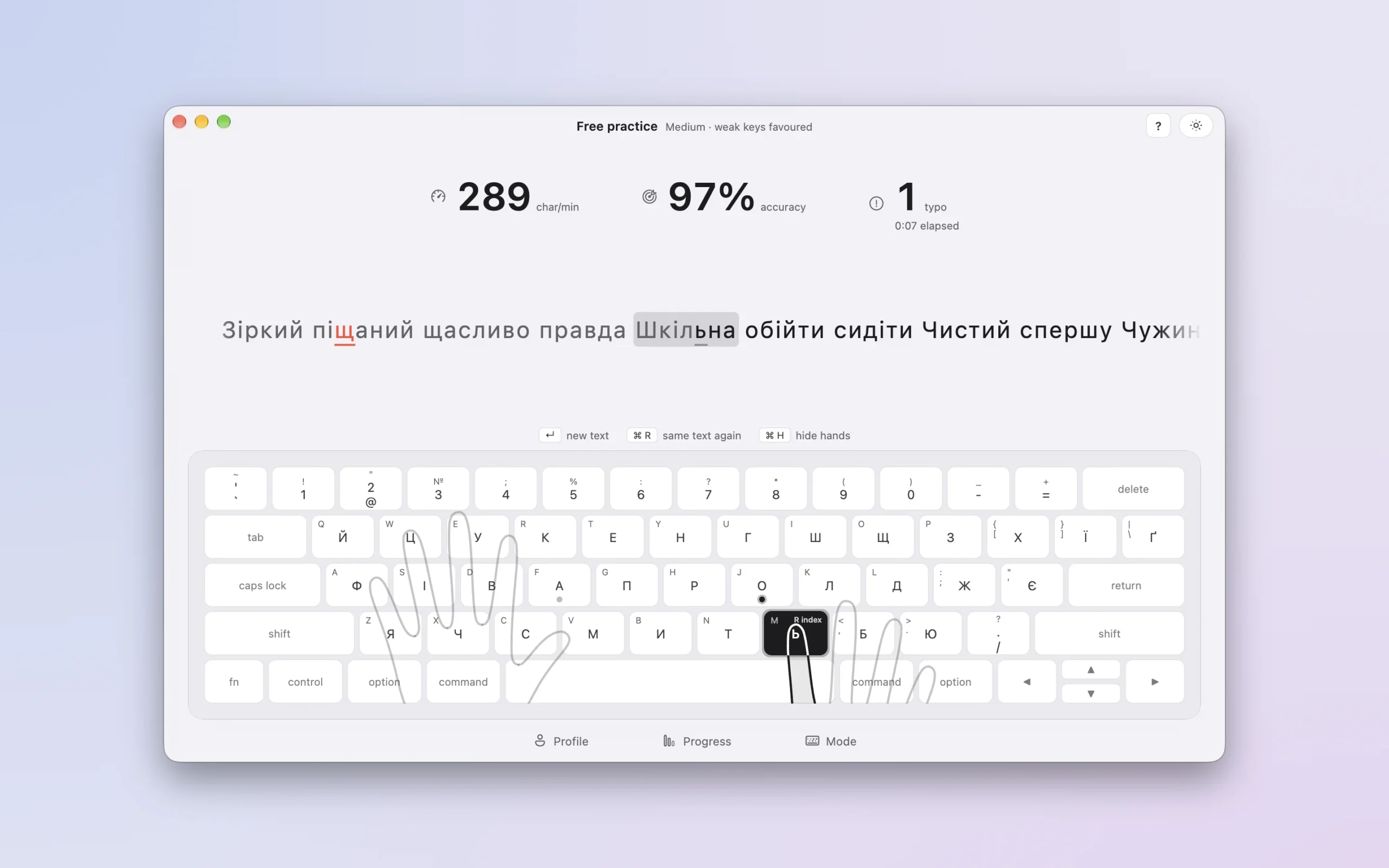
Typia in light theme, practising Ukrainian on a Ukrainian keyboard layout.
Profiles

One app for everyone at home

  • Each profile has its own emoji avatar, settings, lesson progress and statistics.
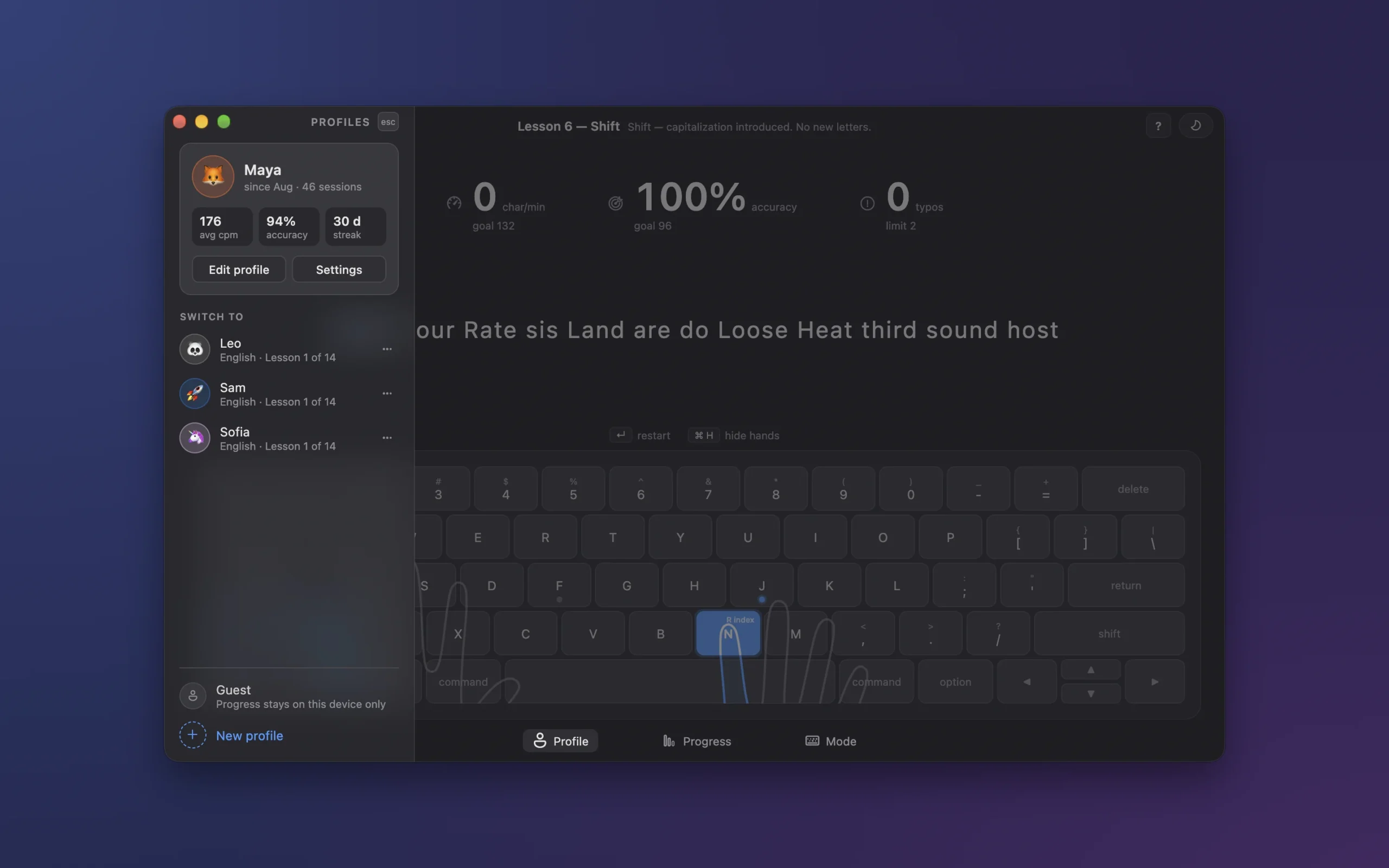
  • The profile card shows average speed, accuracy and day streak at a glance. ⌘P switches profiles.
  • Guest mode lets anyone type without making a profile.
  • Start the lessons over, or delete a profile with all its sessions, at any time.
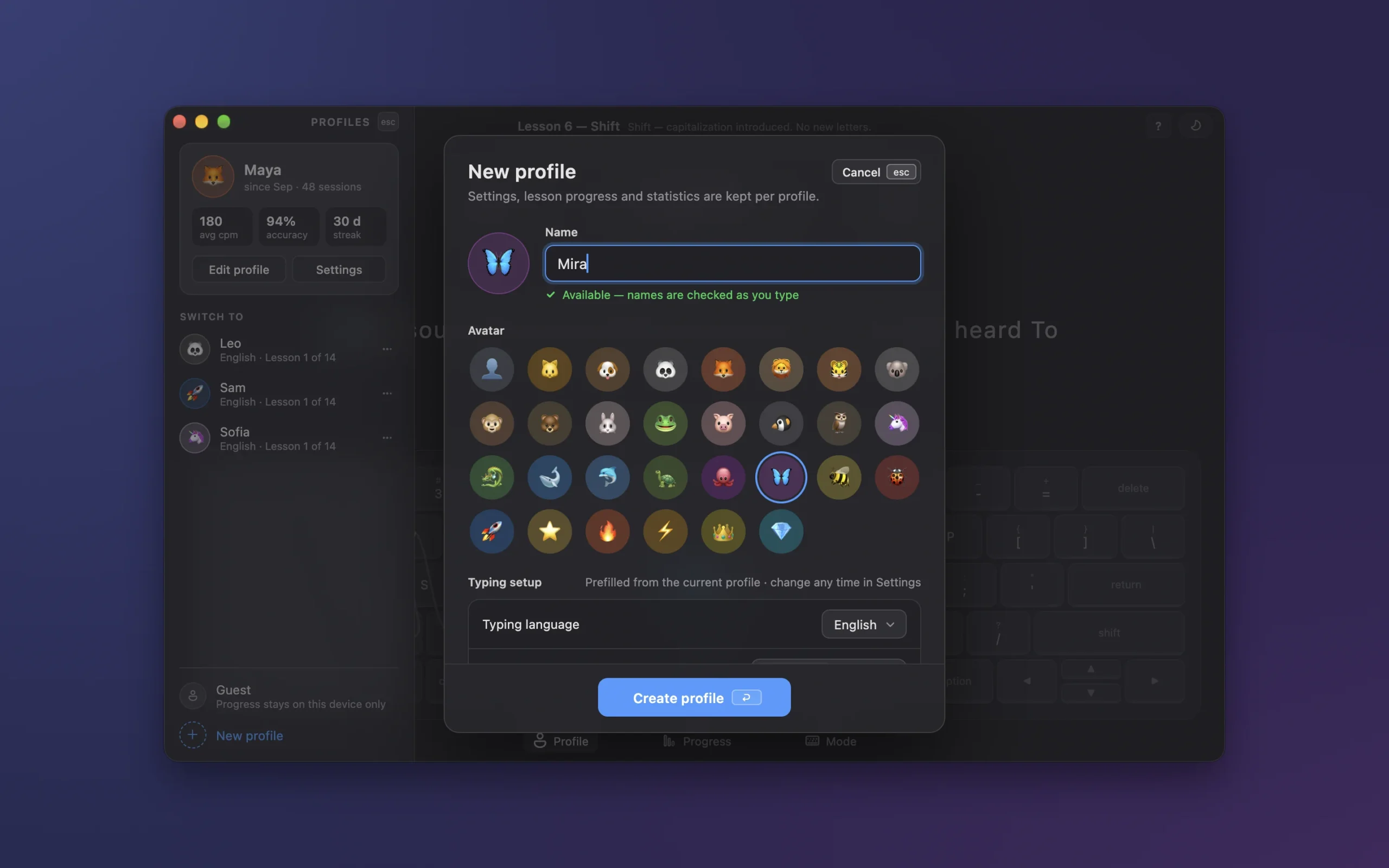
The New profile sheet: a name field, a grid of emoji avatars and the typing setup.
The Profiles sidebar: the current profile's average speed, accuracy and streak, and other profiles to switch to.
Make it yours

Set it up the way you like

  • Light or dark, or follow your system. ⌘D or the title-bar button switches, with a reveal that grows out of the button.
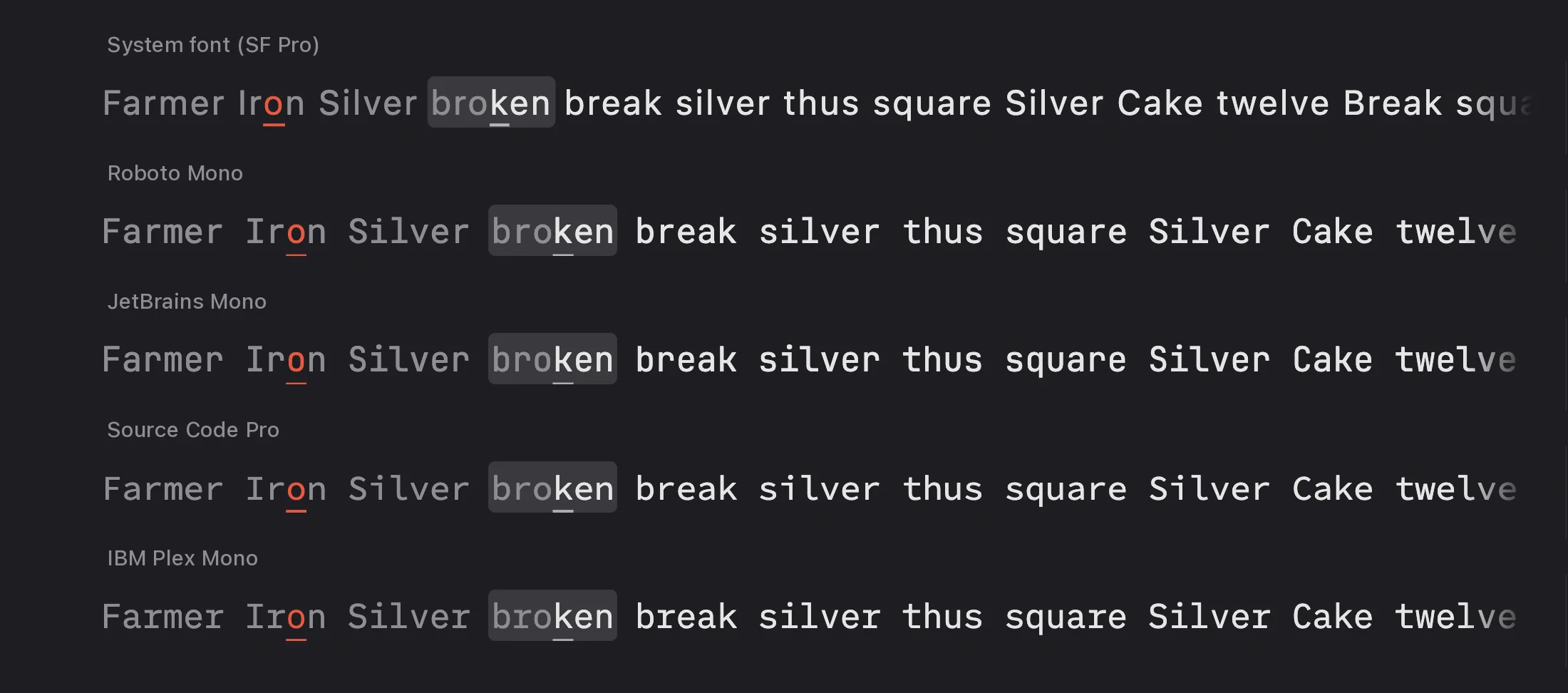
  • Typing font: the system font or one of four monospace fonts: Roboto Mono, JetBrains Mono, Source Code Pro and IBM Plex Mono.
  • Speed in characters or words per minute (one word counts as five characters).
  • Strict or free typing: fix every typo before you go on, or keep going.
  • Guide hands and 3D keys, on or off.
  • Settings belong to each profile and save automatically.
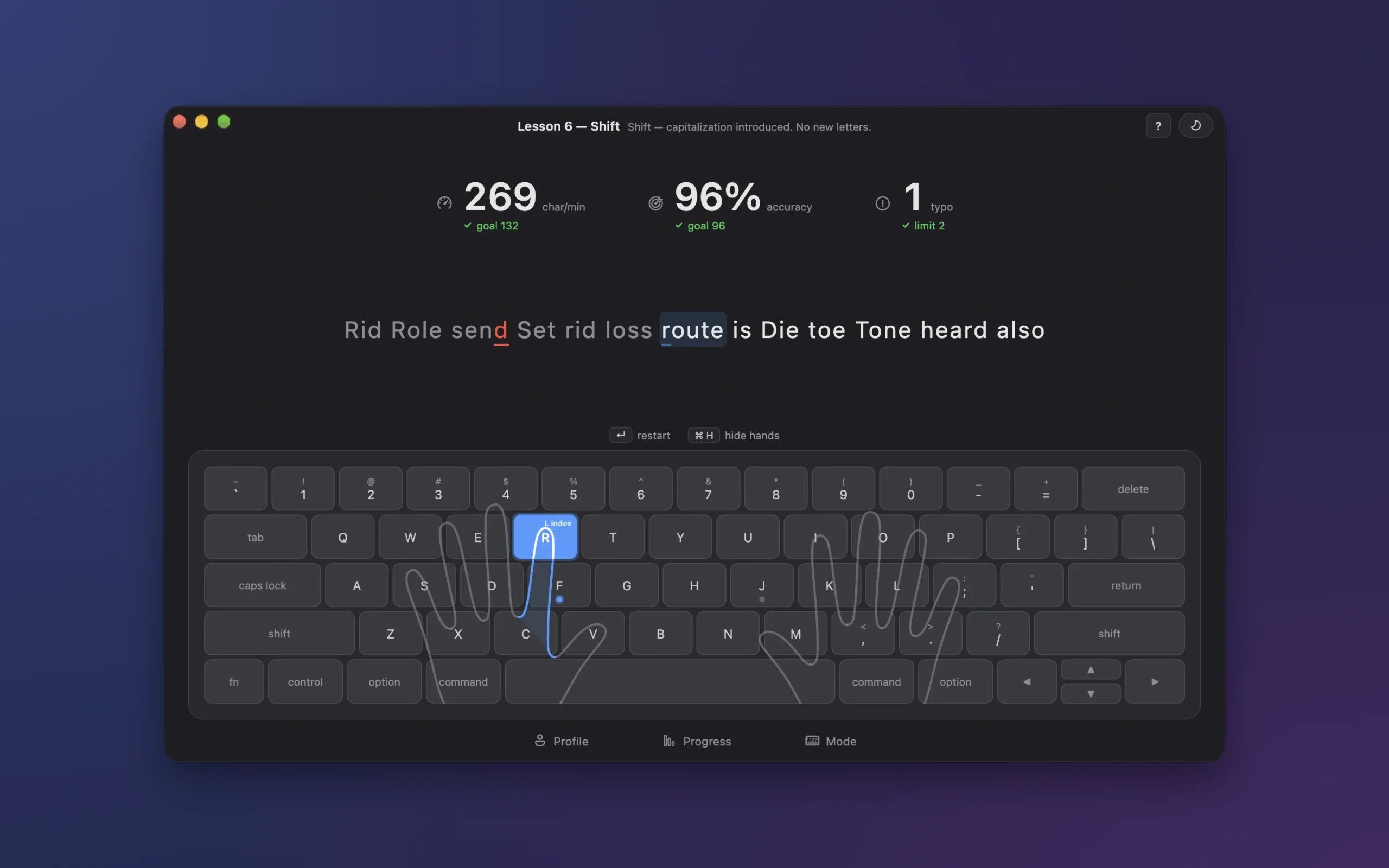
Typia's lesson screen: a line of text being typed, speed and accuracy goals ticked green, and guide hands over an on-screen keyboard with the next key lit.
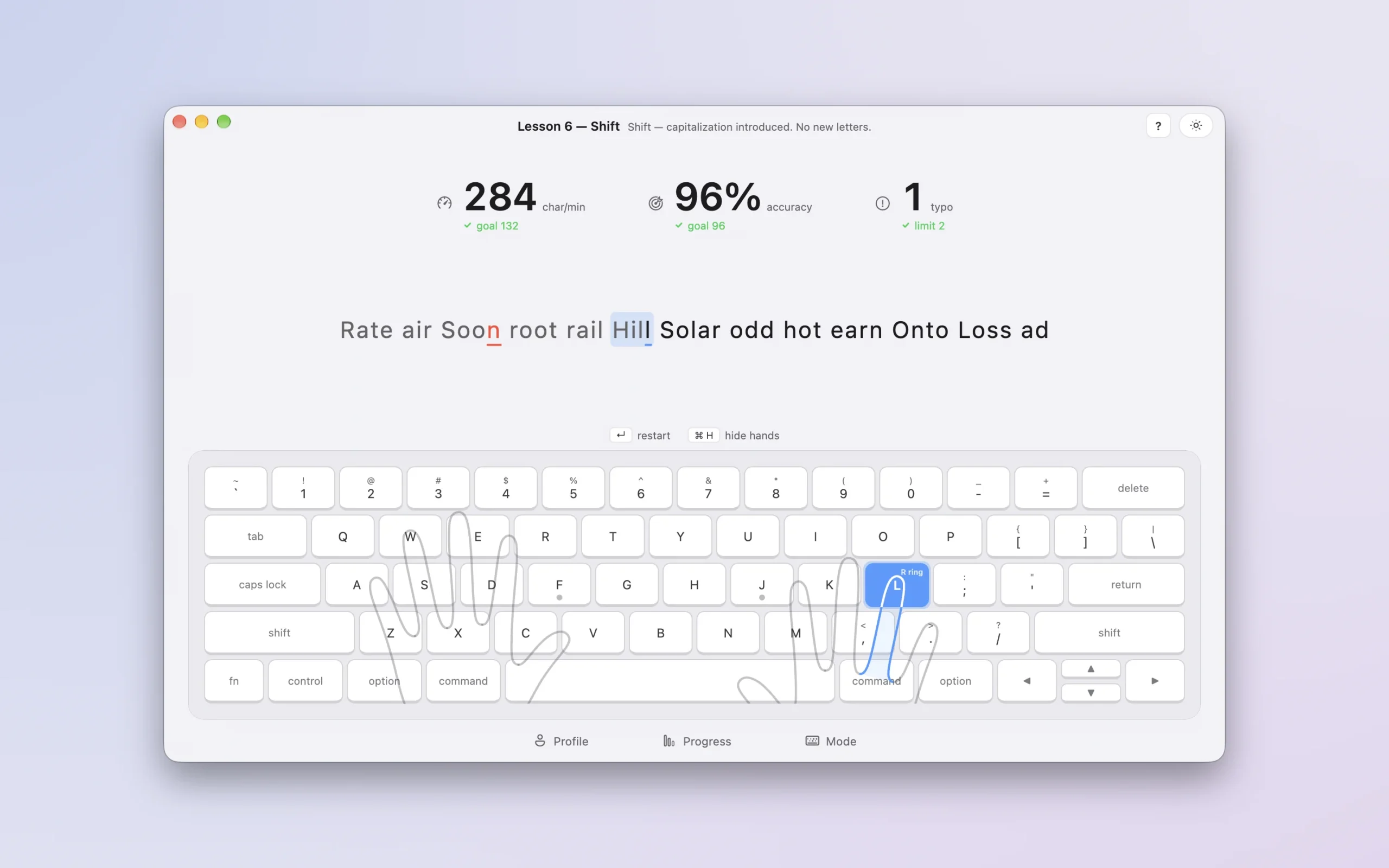
Typia's lesson screen in the light theme.
The same line of practice text in five fonts: the system font, Roboto Mono, JetBrains Mono, Source Code Pro and IBM Plex Mono.
Shortcuts

Built for the keyboard

Everything has a shortcut. On Windows and Linux, ⌘ is Ctrl.

⌫
Remove the last typed character
↩
New text; after a result, continue
esc
Close a panel; pause or resume a session
⌘R
The same text again
⌘H
Show or hide the hands
⌘.
End a session early
⌘L
Lessons, Session and Practice
⌘P
Profiles
⌘G
Progress
⌘,
Settings
⌘D
Light or dark theme
⌘?
Help & About
Privacy

Private by design

Read the privacy policy →
  • Typia never connects to the internet. There's no account, analytics, advertising or tracking.
  • Profiles, sessions and settings are stored in a database on your computer, and nowhere else.
  • On a Mac, Typia runs inside Apple's App Sandbox.
  • The links in the About screen open in your web browser. That's the only time Typia sends you to the web.
FAQ

FAQ

Which mode should I start with?

If you look at the keyboard while you type, start with Lessons. They teach a few keys at a time. Once you know where every key is, use Practice for fresh texts and Session for longer runs. Turn on Challenge when you want to push your speed.

What counts as a typo?

Every wrong keystroke, even one you fix straight away. Accuracy is how much of the finished text is right, so fixing a typo keeps your accuracy up, but it still counts as a typo.

How is speed measured?

In characters per minute, spaces included. If you'd rather see words per minute, change it in Settings: one word counts as five characters.

My keyboard isn't American. Will the on-screen keyboard match it?

Choose your layout in Settings, and set Physical keyboard to ISO · EU if your keyboard has the tall Enter key and an extra key next to the left Shift. English can be typed on QWERTY, QWERTZ or AZERTY.

Can several people use Typia on one computer?

Yes. Every profile keeps its own settings, lessons and statistics, and Guest mode is there for anyone who just wants a quick go.

Can I pause a session?

Press esc, then any key to carry on. Turn on “Pause when the window loses focus” and Typia pauses by itself when you switch away.

Can I go through the lessons again?

Passed lessons stay open to replay. To start the course over, reset the profile's lesson progress from the Profiles sidebar. Your sessions and statistics are kept.

Does Typia collect my data?

No. Nothing leaves your computer. See the privacy policy.

Download

Get Typia

  • macOS macOS 12 or later From the Mac App Store
  • Windows Availability to be announced
  • Linux Availability to be announced

Typia is made by Anpersoft.

What's new

What's new

  1. Version 2.0

    A new design from top to bottom, plus:

    • Session mode: timed runs from 10 minutes to an hour, scored as one run.
    • Result cards for lessons, practice texts, challenges and sessions, with comparisons to your last run.
    • A rebuilt Progress screen with key error trends and a keyboard map of your weak keys.
    • Help & About, with an animated guide to each mode.
    • Guide hands that glide to the next key, and 3D keys that sink as you type.
    • Russian (Mac) layout alongside Russian – PC, and correct key highlights for Cyrillic punctuation.
  2. Version 1.0

    The first release: guided lessons in four languages, practice texts on three difficulties, the challenge pacer, progress charts and profiles.

Support

Need a hand?

Found a bug, or a key that lights up wrong on your layout? Tell us at contact@anpersoft.com.

Write to support

It helps to include:

  • Your Typia version (press ⌘? and look under About)
  • Your operating system
  • Your typing language and keyboard layout
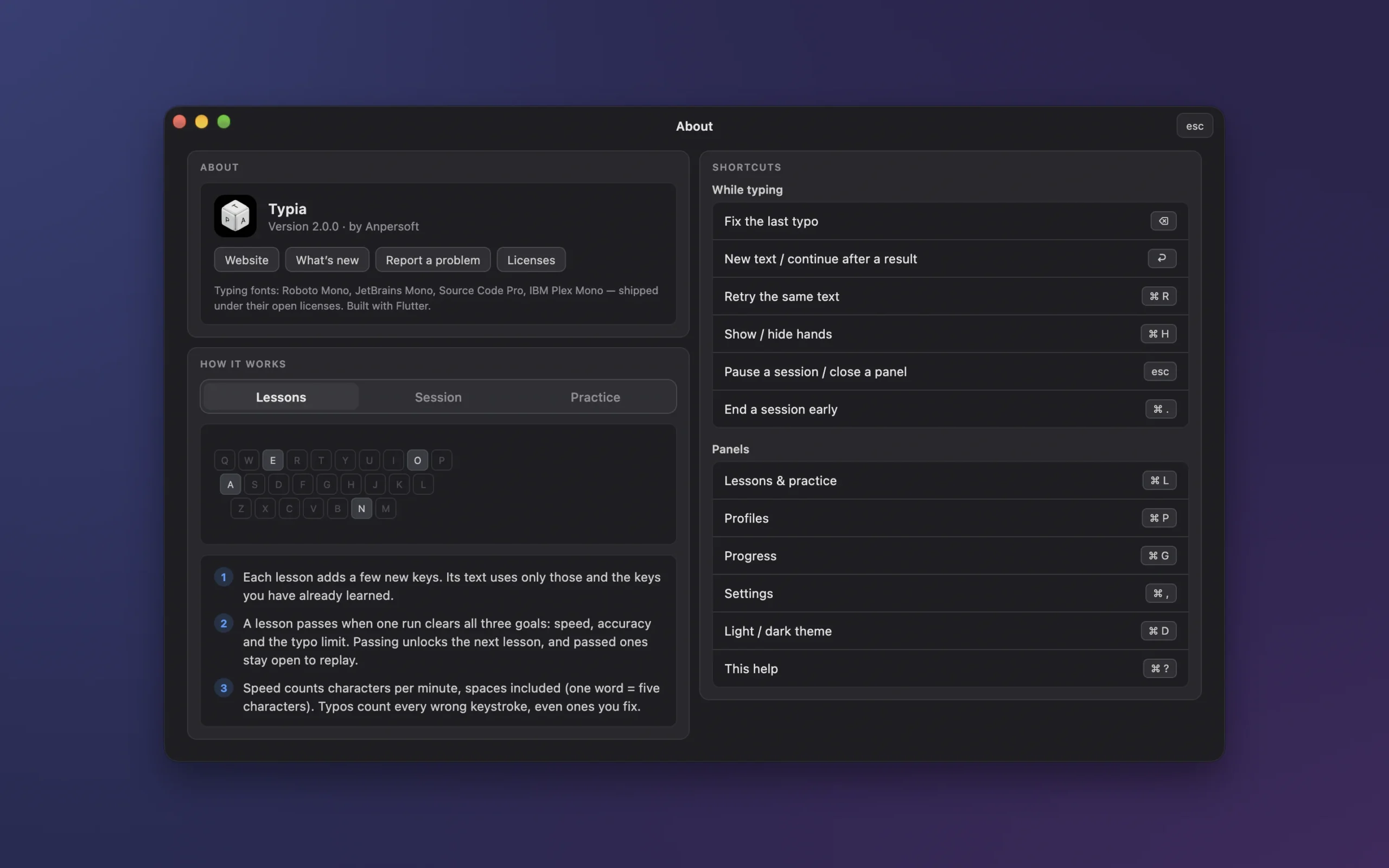
The Help & About screen: version, links, keyboard shortcuts and an animated guide to each mode.
Typia © 2026 Anpersoft

Typing fonts: Roboto Mono, JetBrains Mono, Source Code Pro and IBM Plex Mono, shipped under their open licenses. Built with Flutter.